
In an era dominated by digital platforms, managing your WordPress website is an essential skill to master. If you’ve forgotten your WordPress password, or if you need to add new users, you’re in the right place.
This tutorial will guide you through the process of changing your WordPress password from cPanel and adding new users to your site.
Changing Your WordPress Password via cPanel
- Access Your cPanel Account: First, log into your web hosting account and access your cPanel dashboard. It’s typically found at yourdomain.com/cpanel.
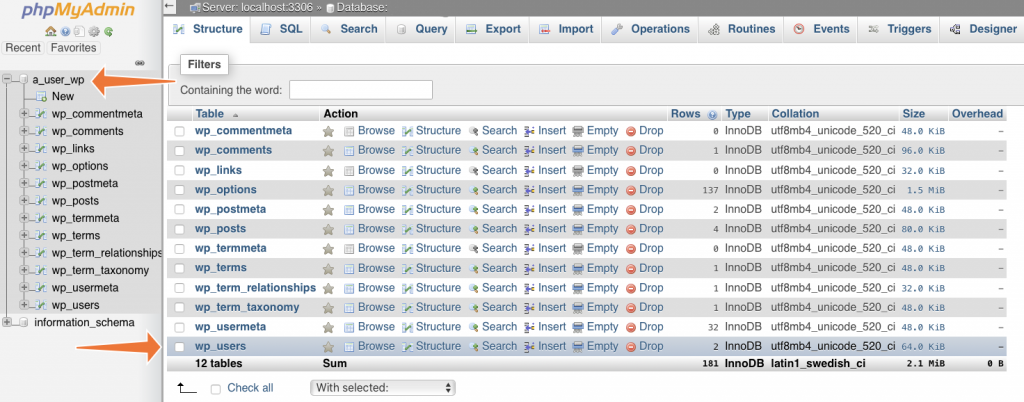
- Find phpMyAdmin: Once in cPanel, navigate to the database section and click on phpMyAdmin.
- Choose the right database in cPanel: In phpMyAdmin, locate and select the database that corresponds to your WordPress website.
- Access wp_users Table: Within the database, look for the ‘wp_users’ table. Click ‘Browse’ to access the list of users.
- Change the Password: Find your username and click ‘Edit’. In the user_pass field, replace the existing value with your new password. Ensure that the ‘Function’ dropdown is set to MD5 to encrypt your password.
- Save Changes: Click ‘Go’ at the bottom of the page to save the changes.
Remember, it’s crucial to create a strong password, combining uppercase and lowercase letters, numbers, and special characters.
How to change your WordPress password using Softaculous
You can also change your WordPress password directly from the cPanel’s WordPress Manager. Here’s how:
- Login to cPanel: Open your web browser and visit your site’s cPanel login URL (typically, this is yourdomain.com/cpanel). Enter your login credentials.
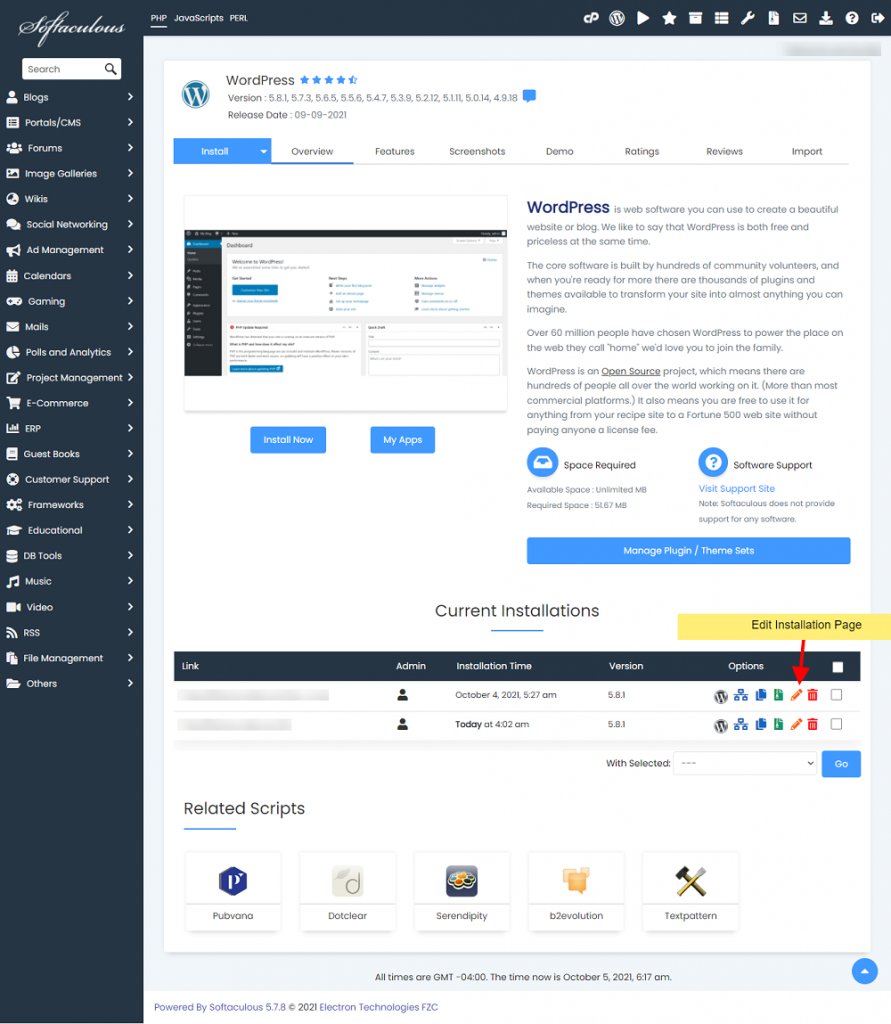
- Access WordPress Manager: In the cPanel dashboard, look for the ‘WordPress Manager’ or ‘WordPress Installer’ tool. This tool may be under the ‘Software’ or ‘Softaculous Apps Installer’ section, depending on your hosting provider.
- Find Your Site: In the WordPress Manager, you’ll see a list of your WordPress installations. Find the site where you want to change the password, and click ‘Manage’ or the corresponding gear icon.
- Go to Users Tab: Once in the management screen, navigate to the ‘Users’ tab.
- Change Password: Find your username in the list and click ‘Change Password’. Enter your new password, confirm it, then click ‘Change’.
- Log In to WordPress: Now, you can log in to your WordPress site with your new password.
Remember to create a strong, unique password to maintain the security of your WordPress site.
If you’re having trouble, reach out to your hosting provider for assistance. They’re usually happy to help with issues like these.


